Generic selectors
Exact matches only
Search in title
Search in content
Post Type Selectors

Steps to add a mindmarker to a program.

  1. Navigate to Learning Journeys Menu

    1. Click Learning Journeys on your menu bar.

  2. Select the Program

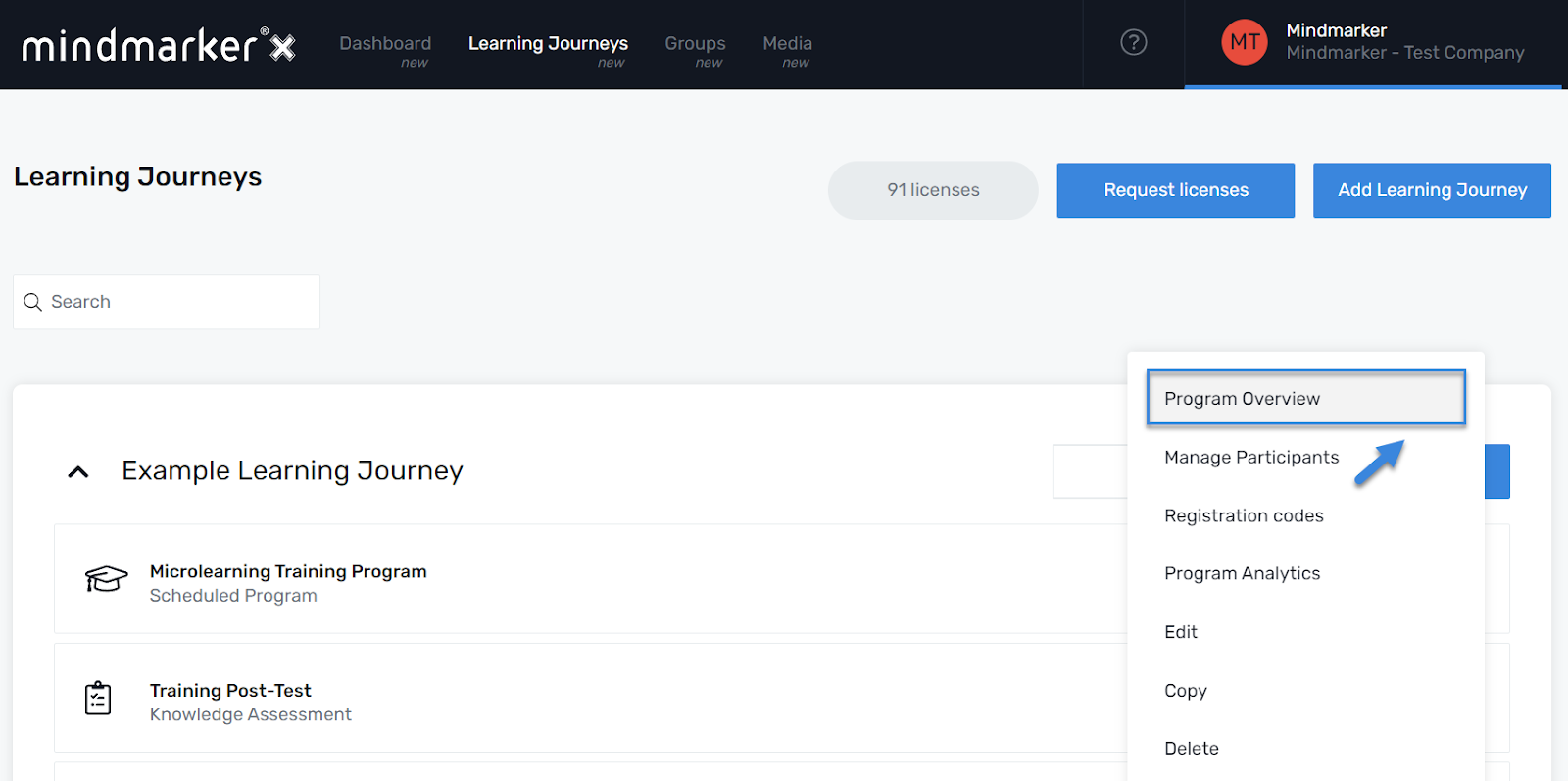
    1. Click the program you want to add a mindmarker to by selecting Program   Overview from the (⋮) menu.

      Note: Steps 1 and 2 aren’t required if you’re adding a new program. 
  3. Add a Mindmarker

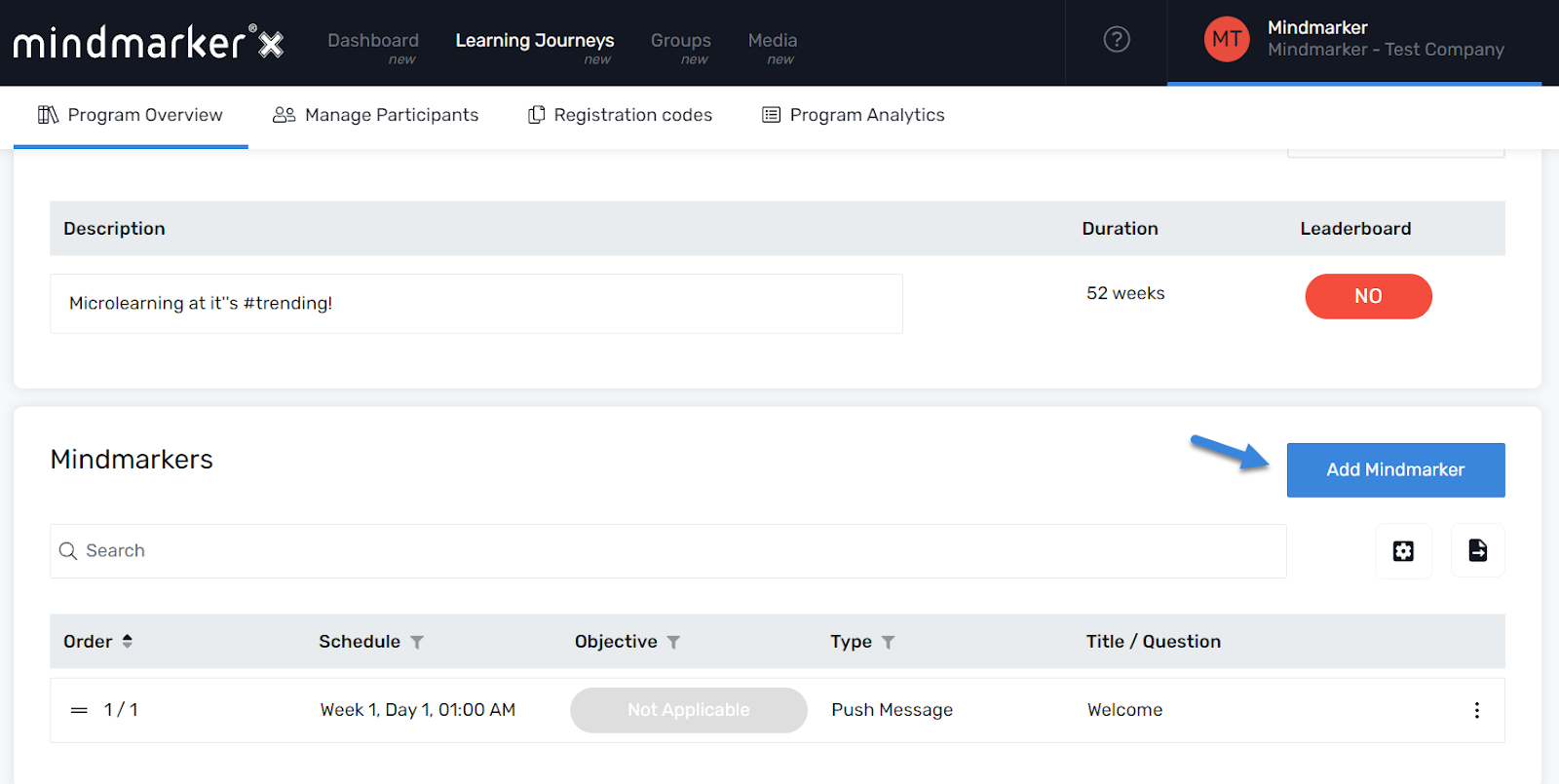
    1. Click the Add Mindmarker button.

  4. Select the Type of Mindmarker

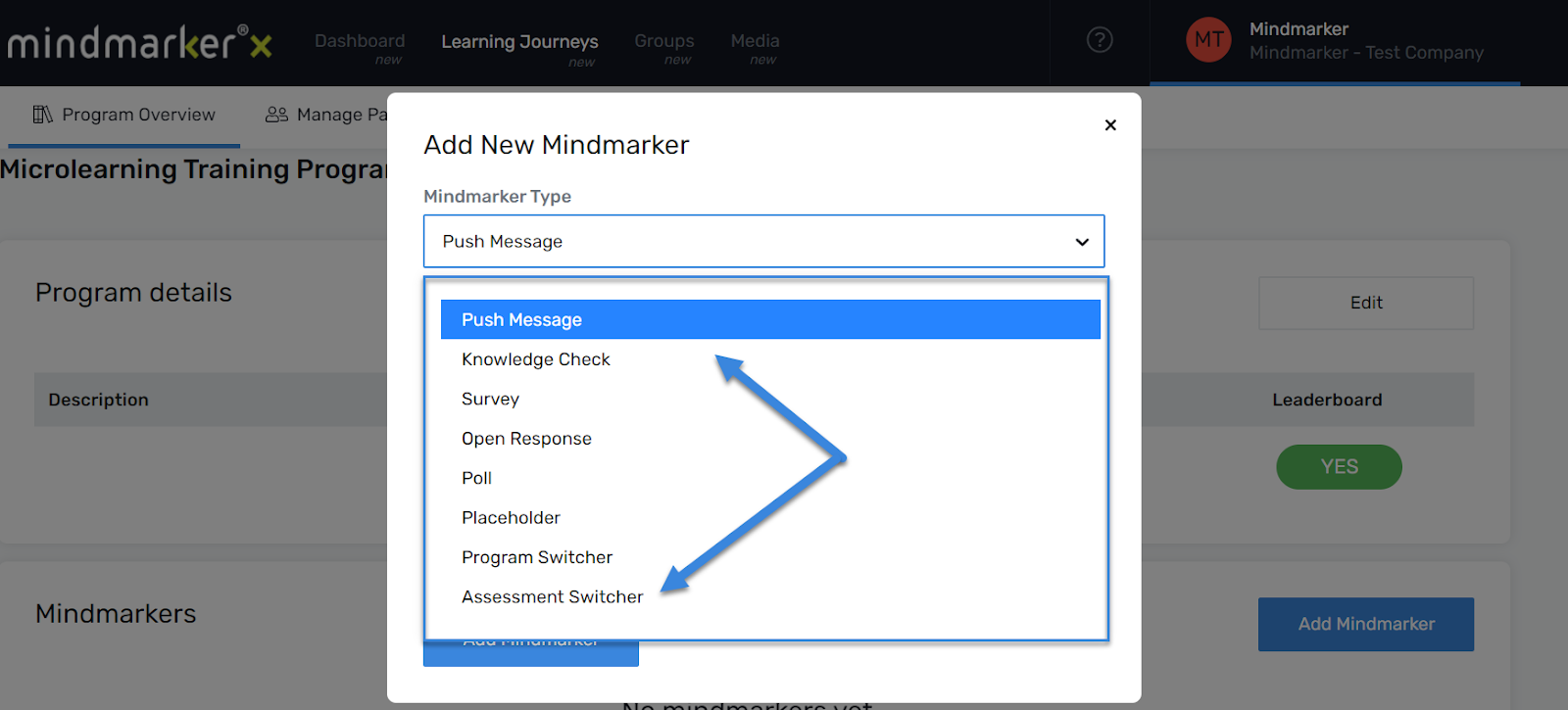
    1. Select the type of Mindmarker from the drop-down menu.


    2. Click the Add Mindmarker button.
  5. Schedule the Mindmarker (if applicable)

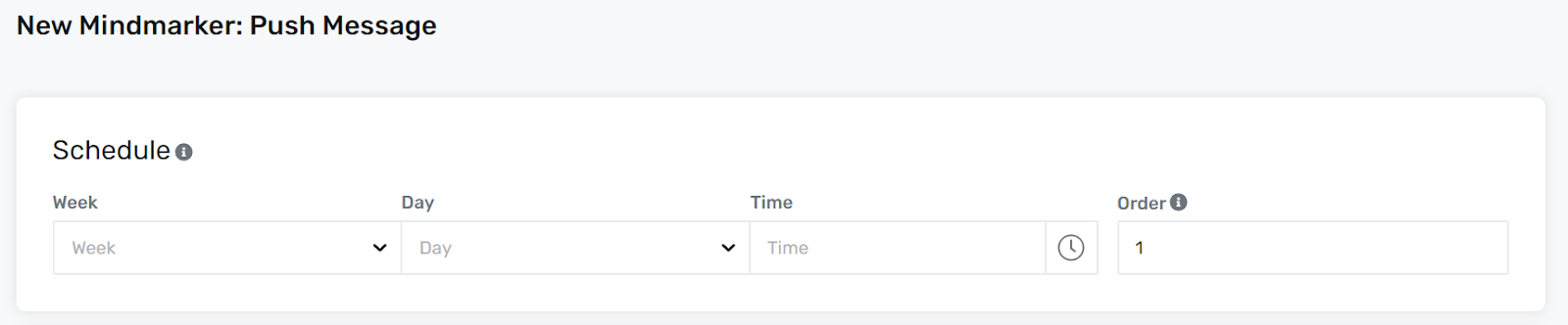
    1. Select the Week, Day, Time, and Order for the mindmarker to be delivered.


      Note: This option is only available for scheduled programs.
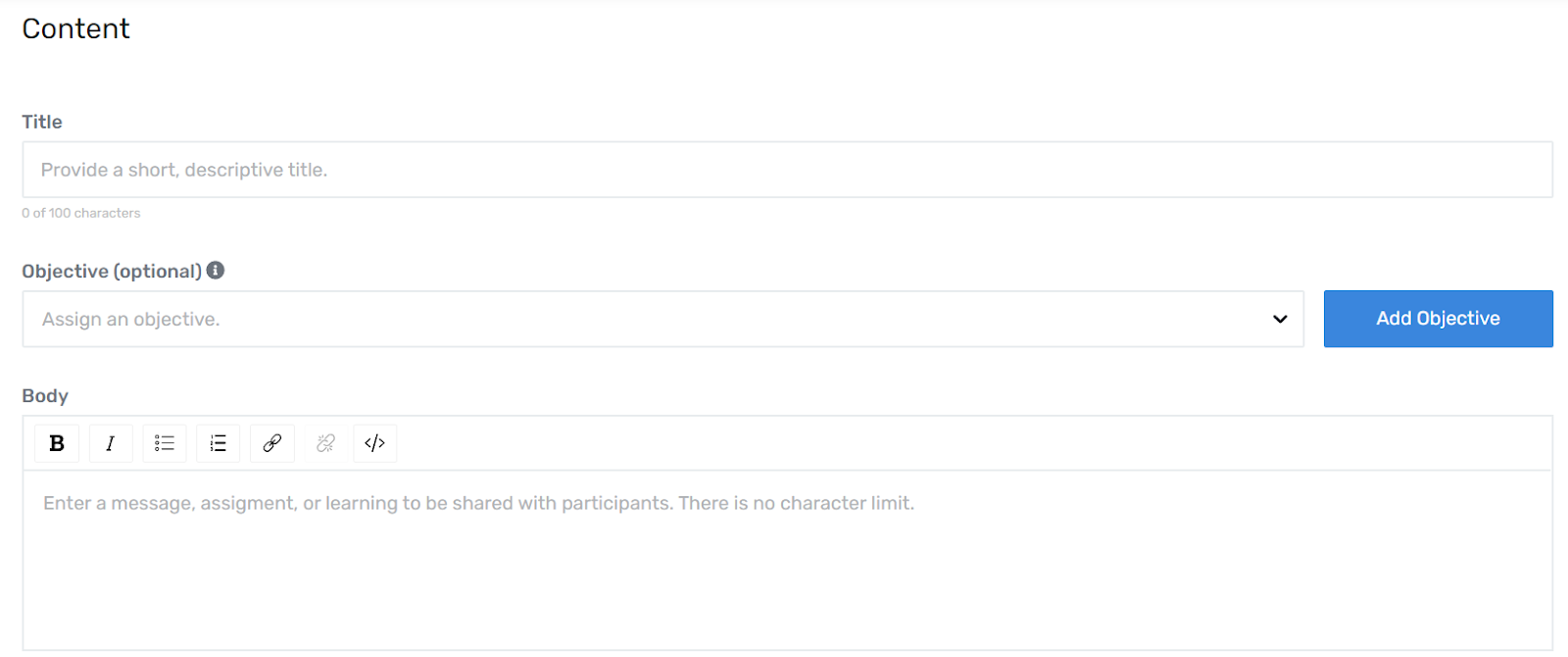
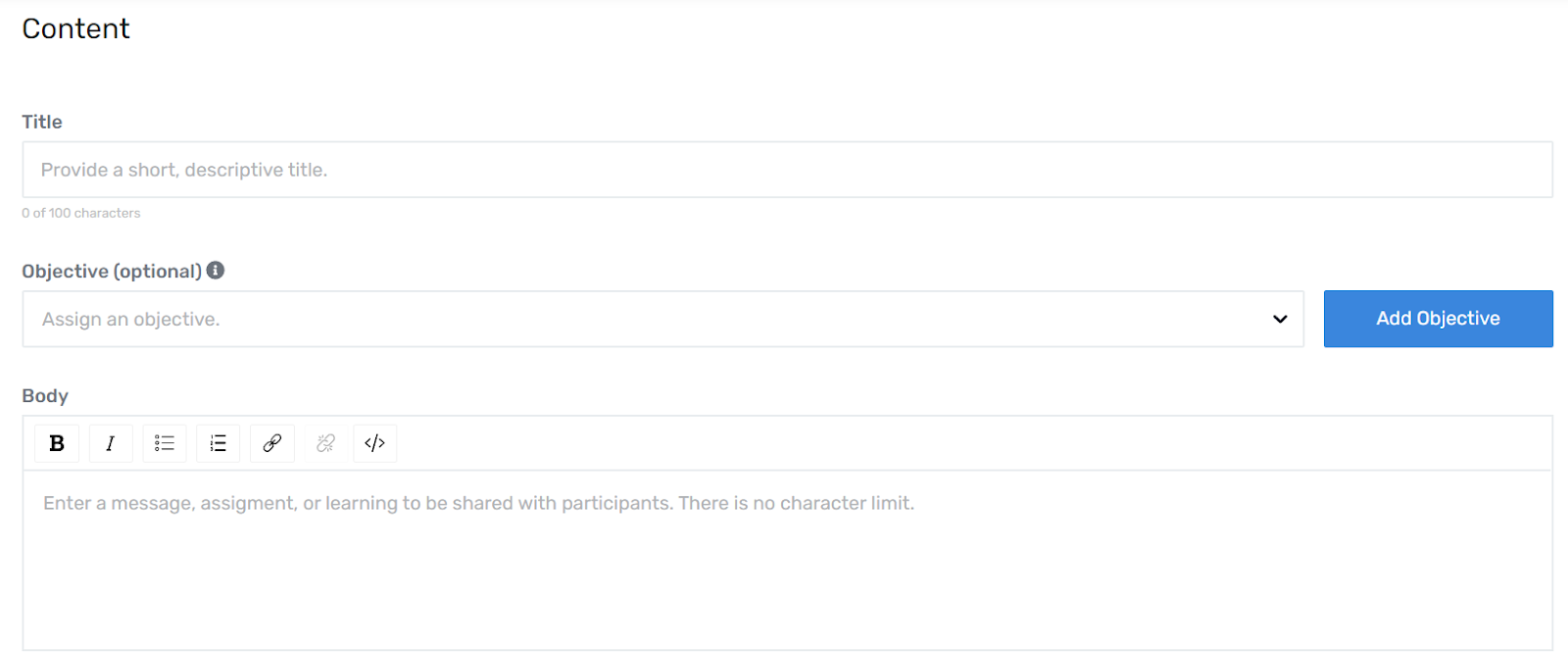
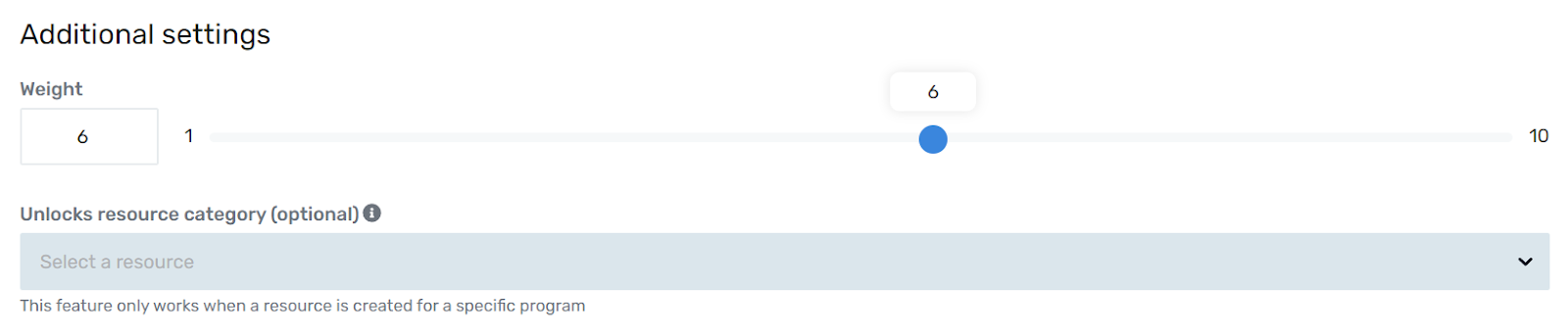
    2. Under the Content section, add the required fields and make any necessary adjustments under Additional Settings.


  6. Click Save

    1. Click the Save button to add the mindmarker.

    2. pop-up message will appear confirming that the mindmarker was added.

Let’s Talk Training Transformation

Schedule a Demo or Request a Consultation

*Required fields

Ready to scale your training business?

Book a demo and see the platform in action

Ready to turn your expertise into scalable revenue?

Be the first to know when Ready-to-Sell Training Programs launch. Join our newsletter for early updates, exclusive access, and new program releases.

See Mindmarker in Action

Alex - CEO & Co-Founder

Book a 15-minute demo with our CEO to explore how Mindmarker can transform your training business into a scalable revenue engine.

No pressure. Just a real conversation about your goals and growth opportunities.