Steps to add resources to your on-demand media library.
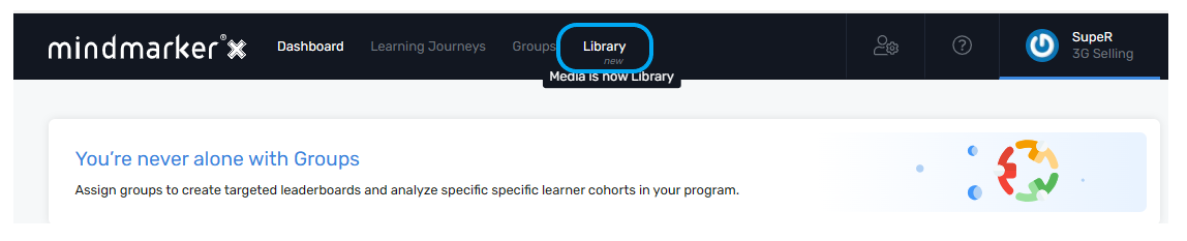
1. Navigate to Library Menu
Click Library on the menu bar.
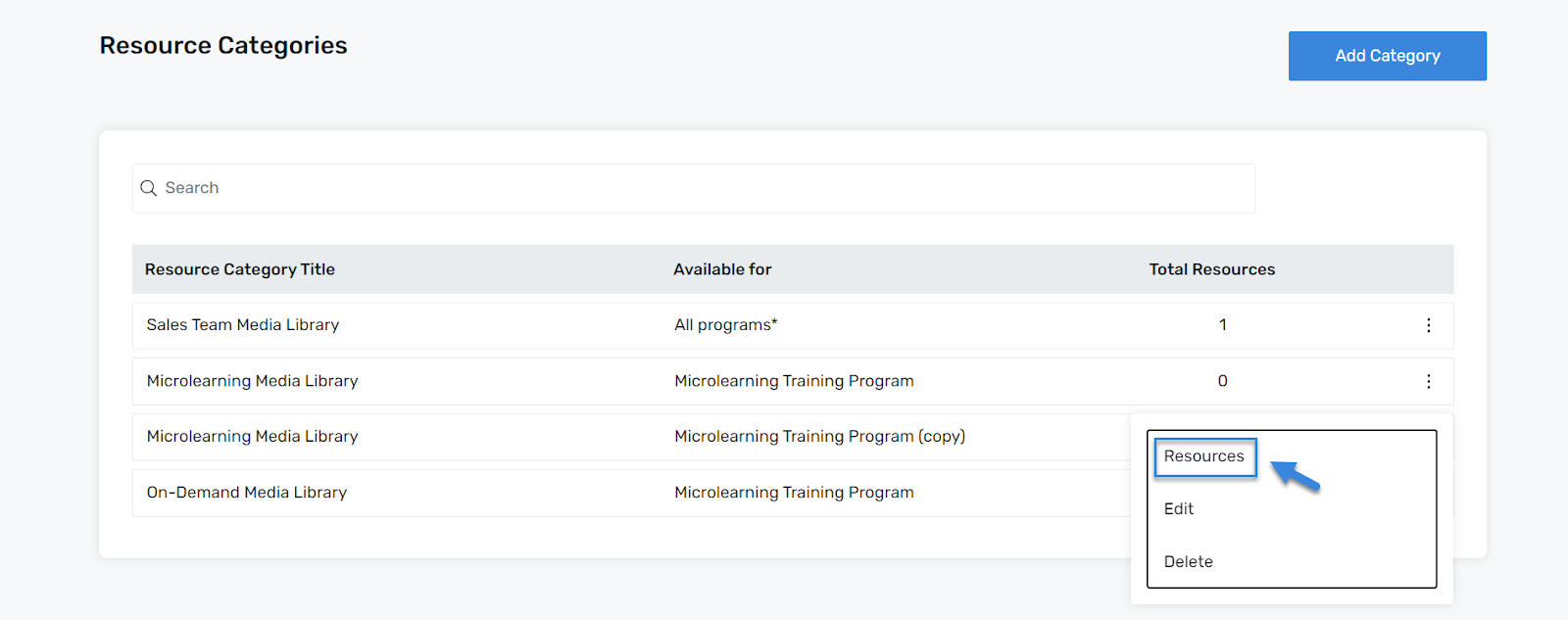
2. Select Resource Category
Once you have identified the correct Resource Category, select the (⋮) menu, then click Resources.
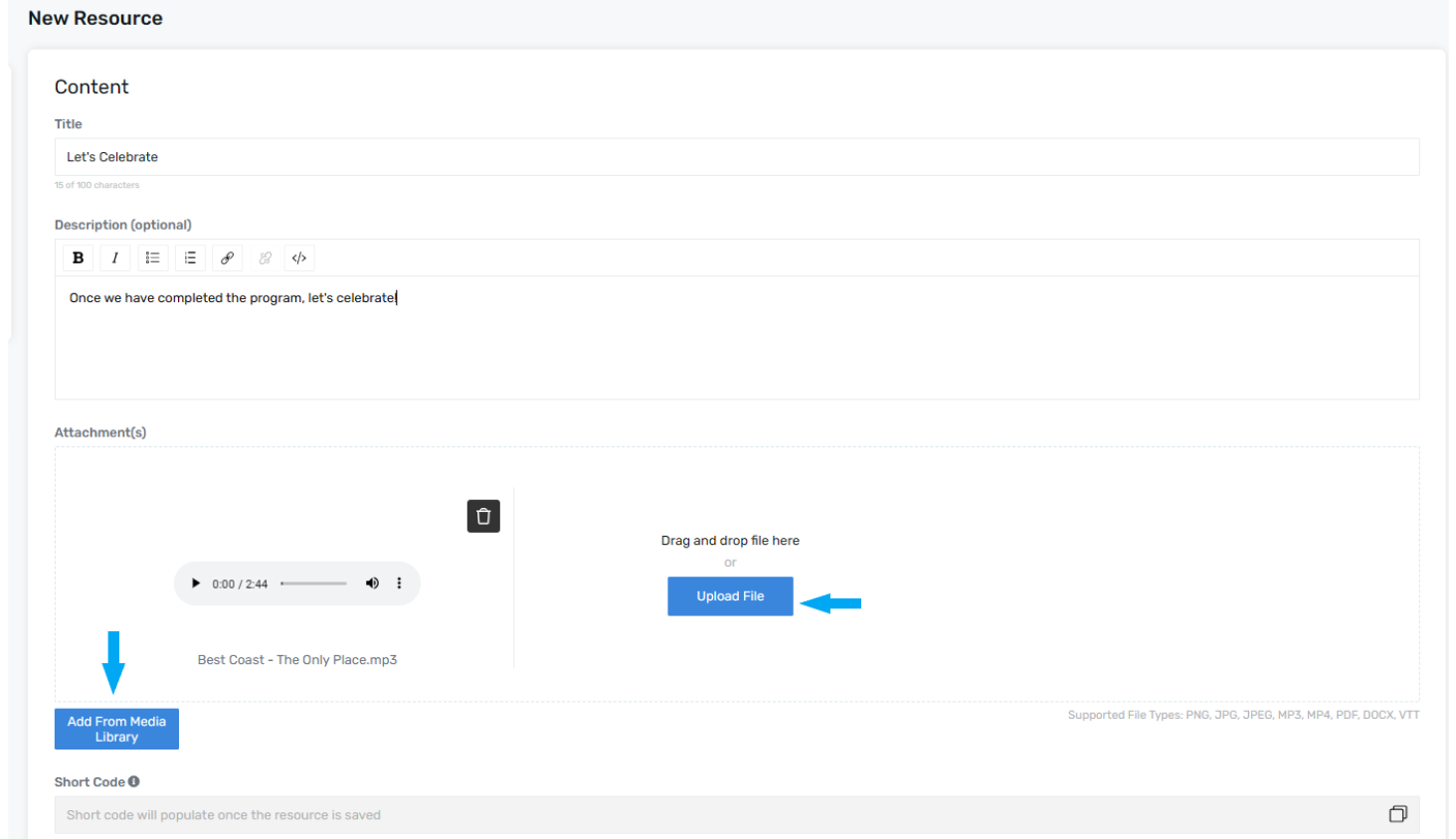
3. Add Resource(s)
Under the Content section, enter a Title and short Description for the New Resource. Select the type of Media Resource you would like to add or create an Action Card. Click Add From Media Library to select or upload a new file from the Library or Upload File from your system. Note:Valid file types include: .jpeg, .png, .mp3, .mp4, and .vtt.
Once all required fields are complete, click Save to add the category.
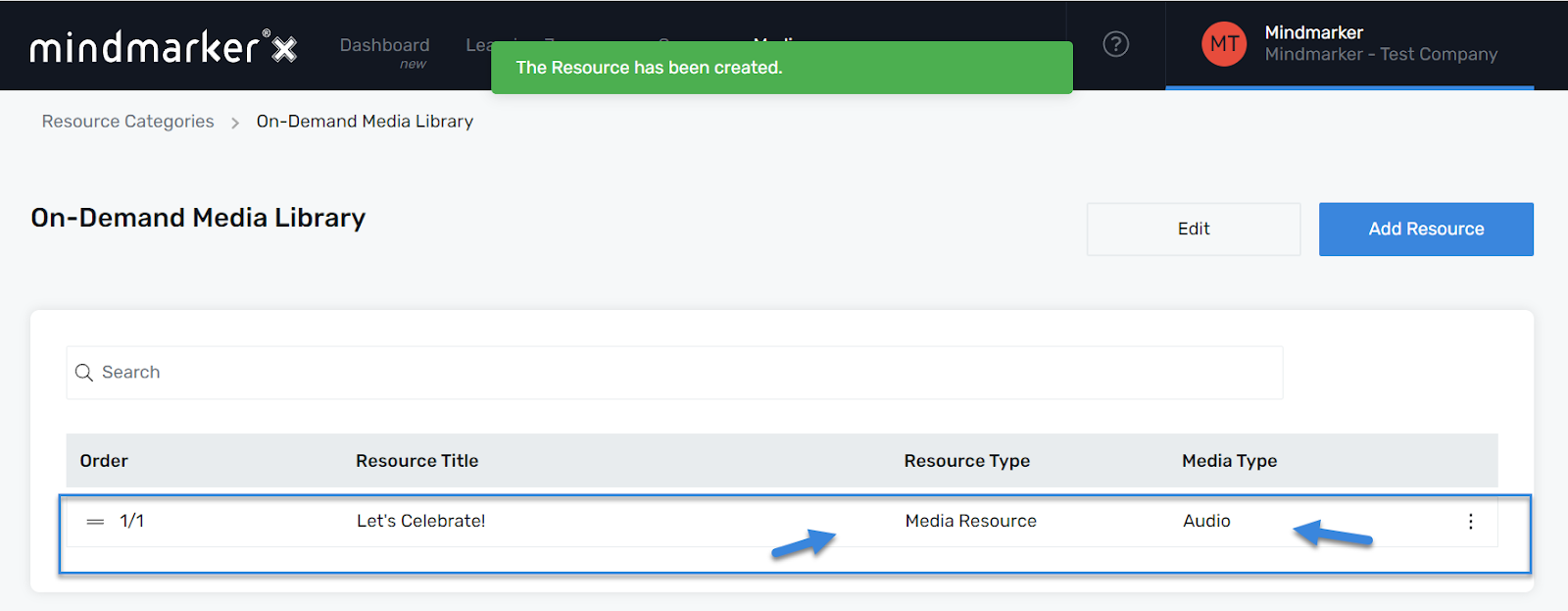
A pop-up message will appear confirming that the resource has been successfully added.
We use cookies to ensure that we give you the best experience on our website. If you continue to use this site we will assume that you are happy with it.