Steps to manually invite existing participants to a mindmarker program.
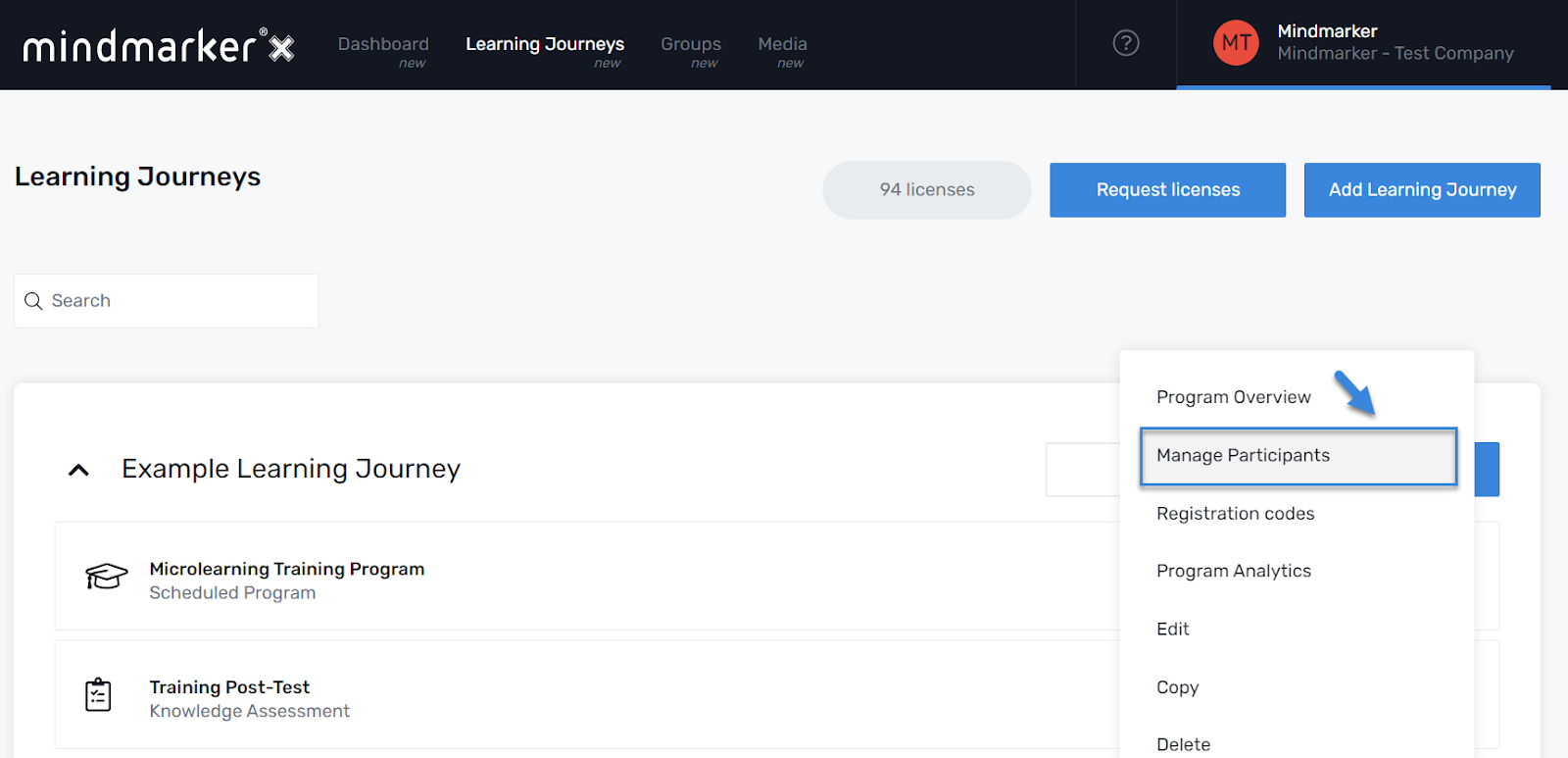
Navigate to Learning Journeys Menu
Click Learning Journeys on your menu bar.
Select Program
Choose the program you want to add participants to by selecting the (⋮) menu, then click Manage Participants.
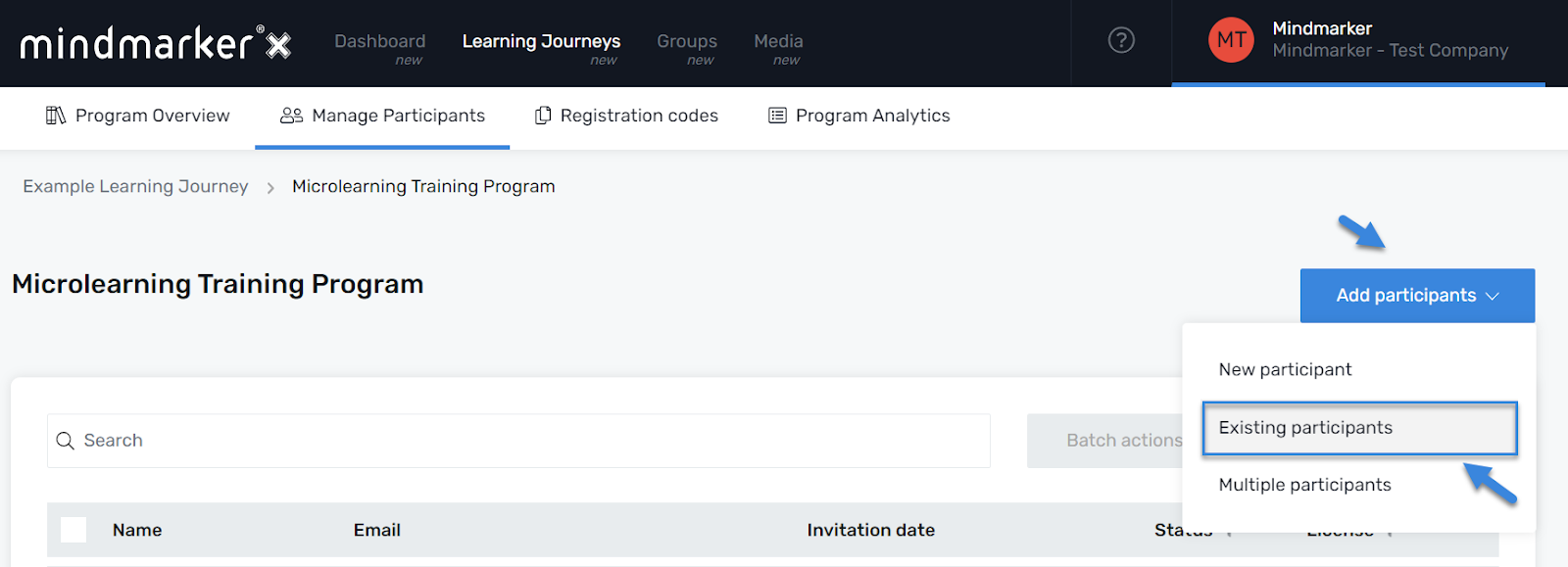
Once you’ve selected your Program, click Add participants > Existing participants from the dropdown menu.
Add Existing Participant(s)
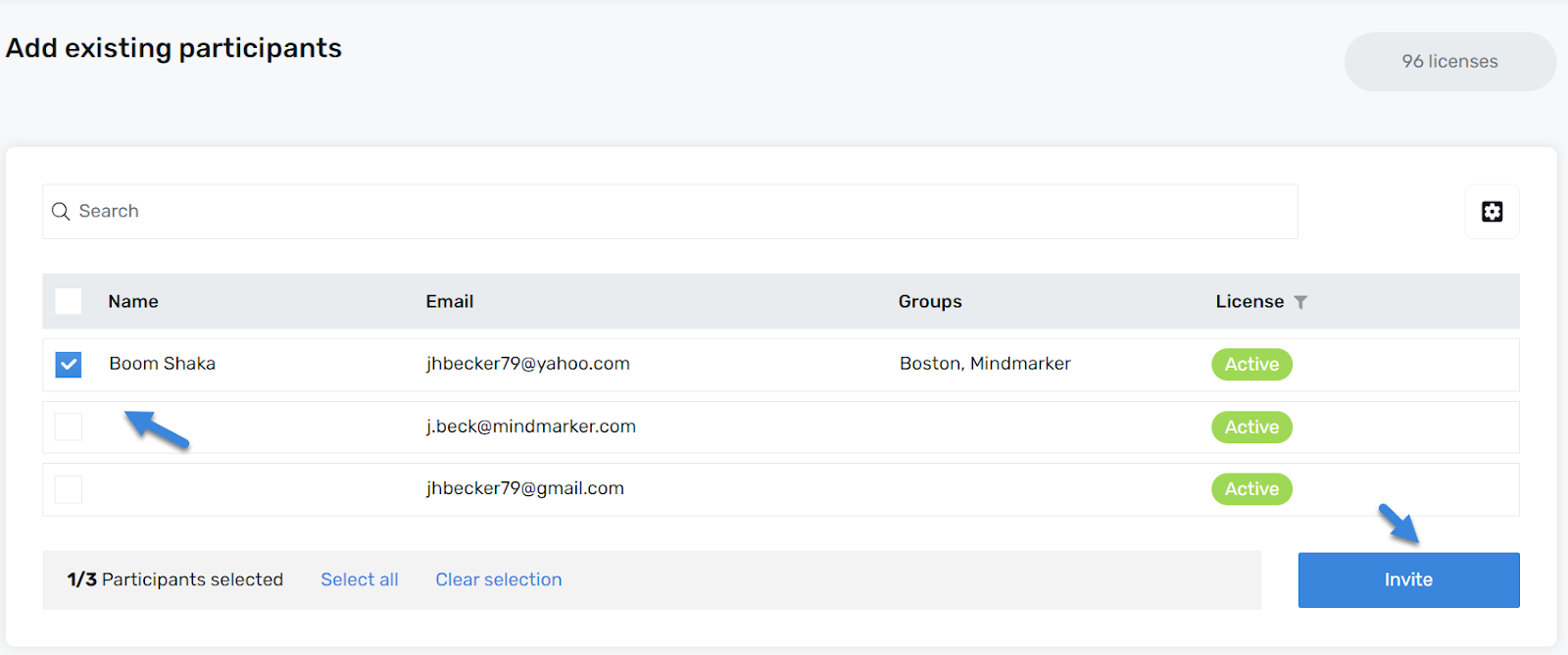
On the Add existing participants screen, select the participant(s) you want to invite to the program by selecting the checkboxes under the Name column.
Once the name(s) are selected, click the Invite button.
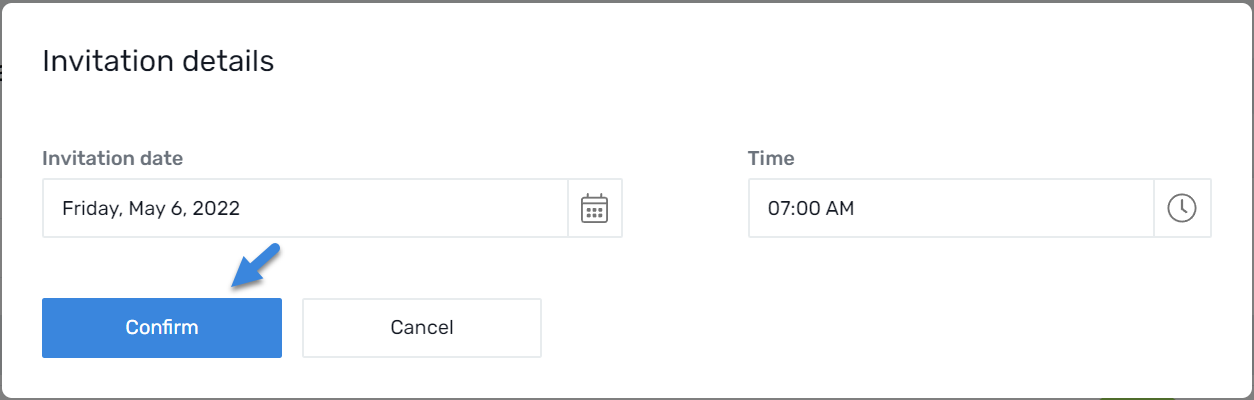
Add Invitation Details
The Invitation details screen will appear. Add the Invitation date and Time. When ready, click Confirm.
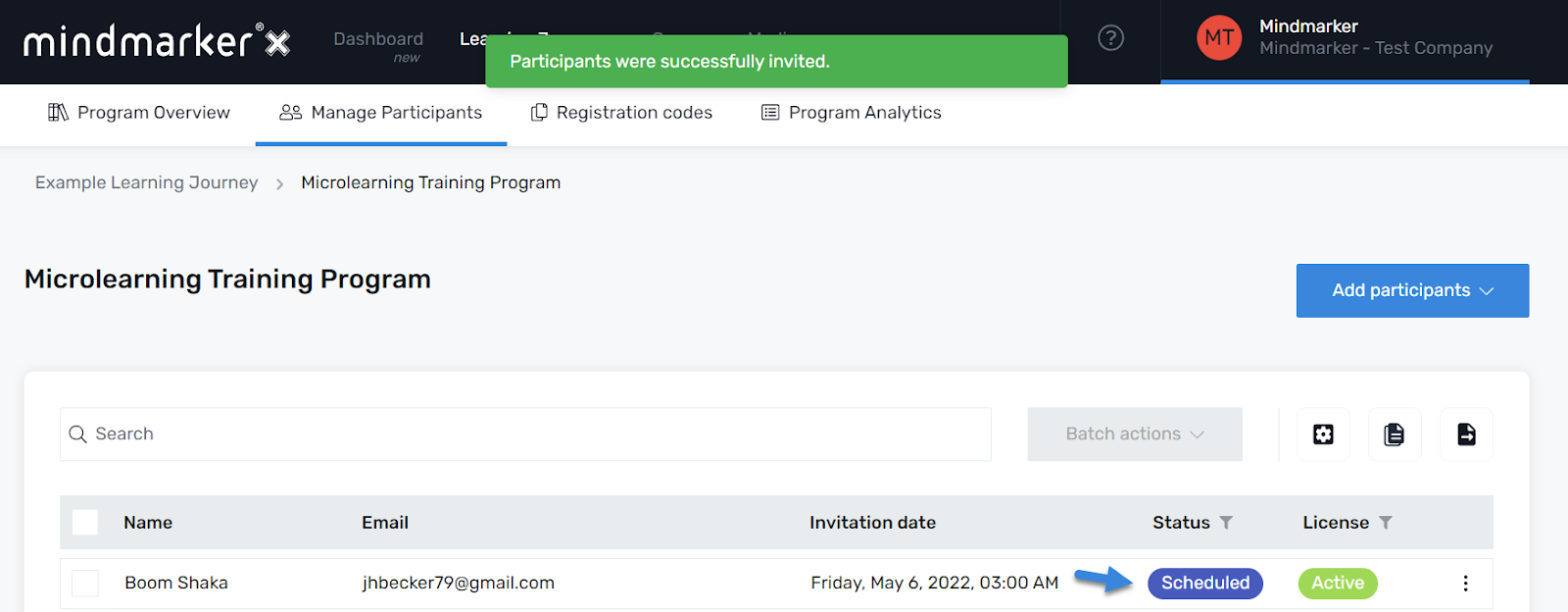
A pop-up message will appear, confirming the participant(s) were successfully invited to the program.
We use cookies to ensure that we give you the best experience on our website. If you continue to use this site we will assume that you are happy with it.