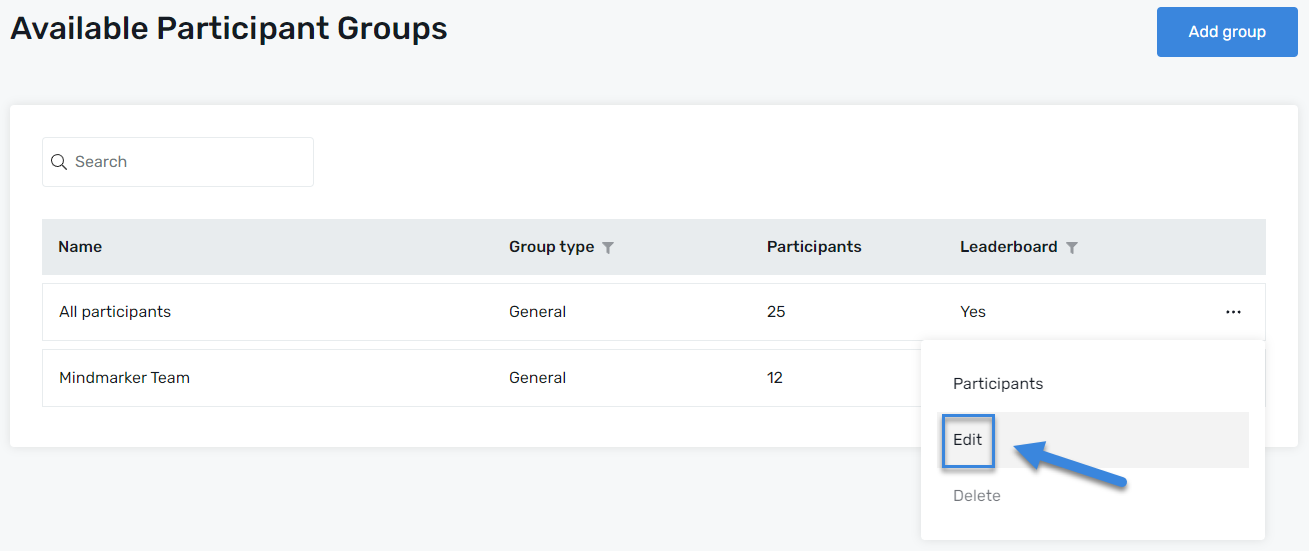
Under the Available Participant Groups screen, click the Group you want to edit by selecting the (⋮) menu and clicking Edit.
Make Edits
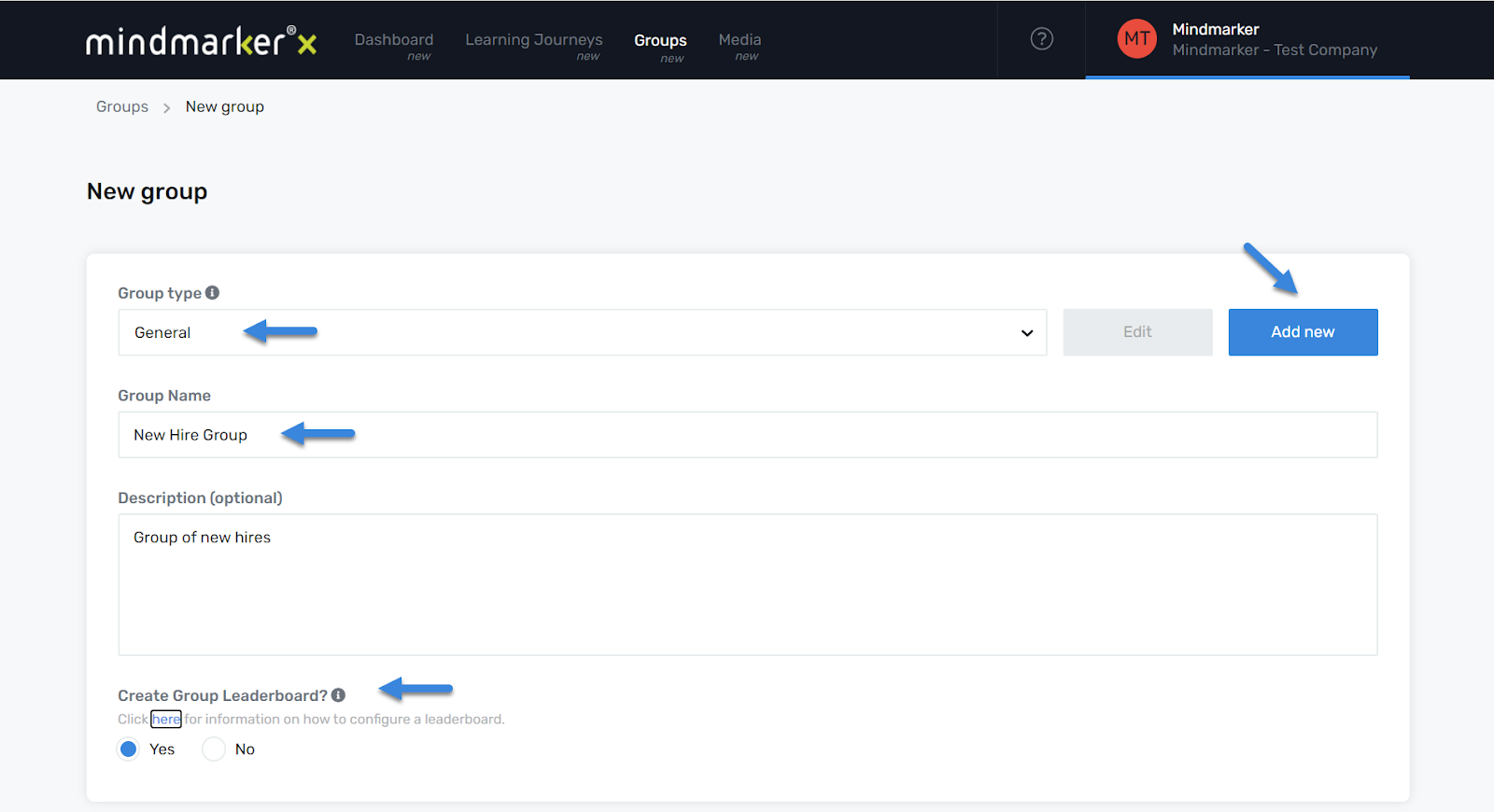
Once you’ve selected your program, you’ll be able to edit the Group Type from the dropdown menu or by clicking on Add New to create a new group type(s). Edit the Group Name and add or edit the Description of the program (optional).
If you want to activate a Leaderboard for this group and make it visible to all participants, select the appropriate radio button. The default option is set to Yes.
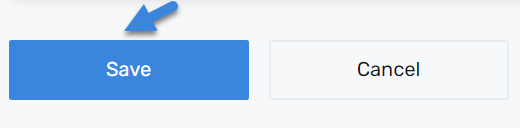
Click Save
Once all required fields are complete, click the Save button to create the new group.
A pop-up message will appear confirming that the group was successfully edited.
We use cookies to ensure that we give you the best experience on our website. If you continue to use this site we will assume that you are happy with it.