
Generic selectors
Exact matches only
Search in title
Search in content
Post Type Selectors

Steps for adding new Knowledge Checks and Open Response mindmarkers that are linked to the existing PUSH mindmarkers.

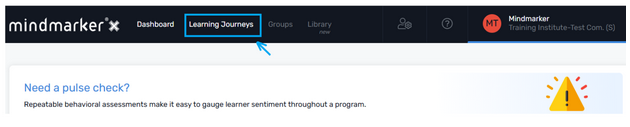
1. Navigate to Learning Journeys Menu
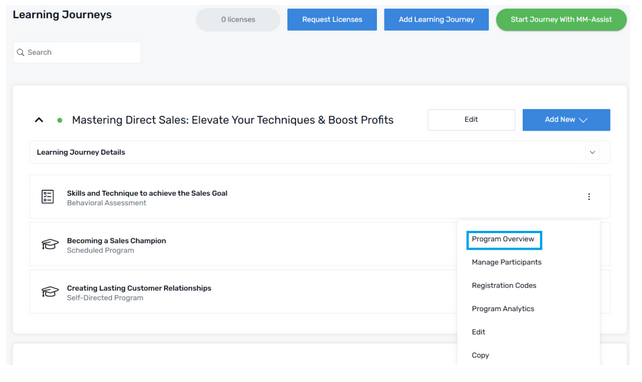
2. Select the Program

Select the program and  click Program Overview from the (⋮) menu.
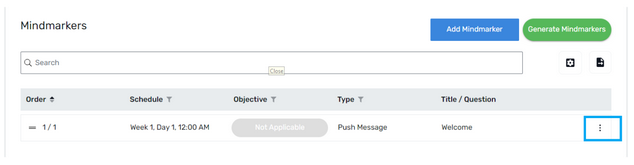
3. Choose type of mindmarkers

a. Click on the (⋮) menu from your preferred mindmarker
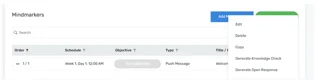
b. Choose the type of mindmarker (Knowledge Check and Open Response) from the (⋮) menu
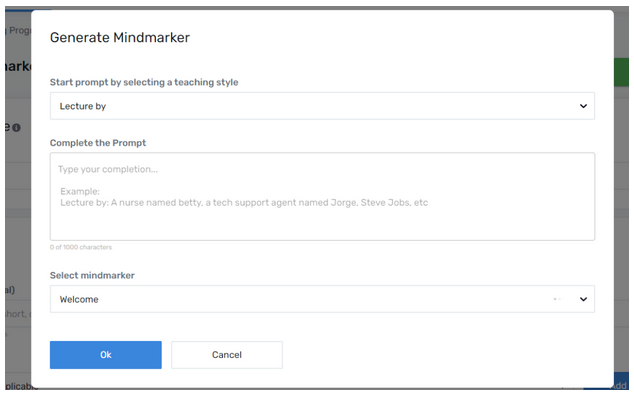
4. Generate Mindmarker

a. Select a teaching style from the dropdown menu

b. Complete the Prompt (the description is generated on the basis of the selected teaching style and how you want the Mindmarker to be presented)

c. Select Mindmarker from the drop down menu
5. Click OK

a. Click  Ok Button
b. A confirmation message will appear on your screen as soon as MM-Assist has finished generating the mindmarker.

Note: You can always edit the generated mindmarkers or use them as it is.

Let’s Talk Training Transformation

Schedule a Demo or Request a Consultation

*Required fields

Ready to scale your training business?

Book a demo and see the platform in action

Ready to turn your expertise into scalable revenue?

Be the first to know when Ready-to-Sell Training Programs launch. Join our newsletter for early updates, exclusive access, and new program releases.

See Mindmarker in Action

Alex - CEO & Co-Founder

Book a 15-minute demo with our CEO to explore how Mindmarker can transform your training business into a scalable revenue engine.

No pressure. Just a real conversation about your goals and growth opportunities.