Customizable, category-specific supporting elements can be created at various milestones in a program to increase engagement, skill performance, and overall behavior change. This content is available to learners on-demand for additional support, knowledge transfer, and application.
Steps to add resources to your on-demand media library.
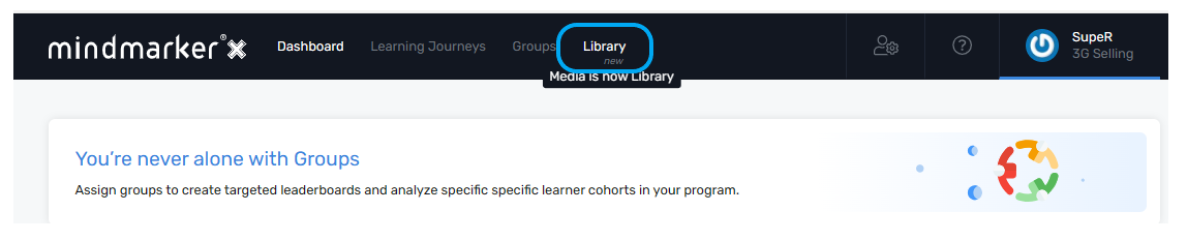
1. Navigate to Library Menu
Click Library on the menu bar.
2. Select Resource Category and Add Categories
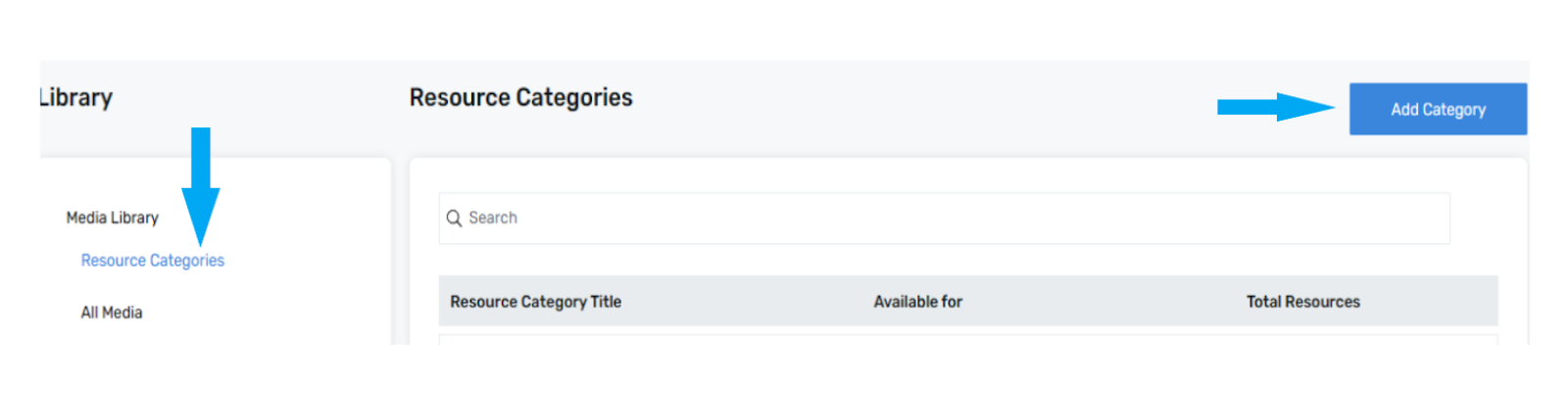
Media Library appears on your screen once you click Library button, where you get two components Resource Categories and All Media.
Select Resource Categories.
Then select Add Categories.
3. New Category
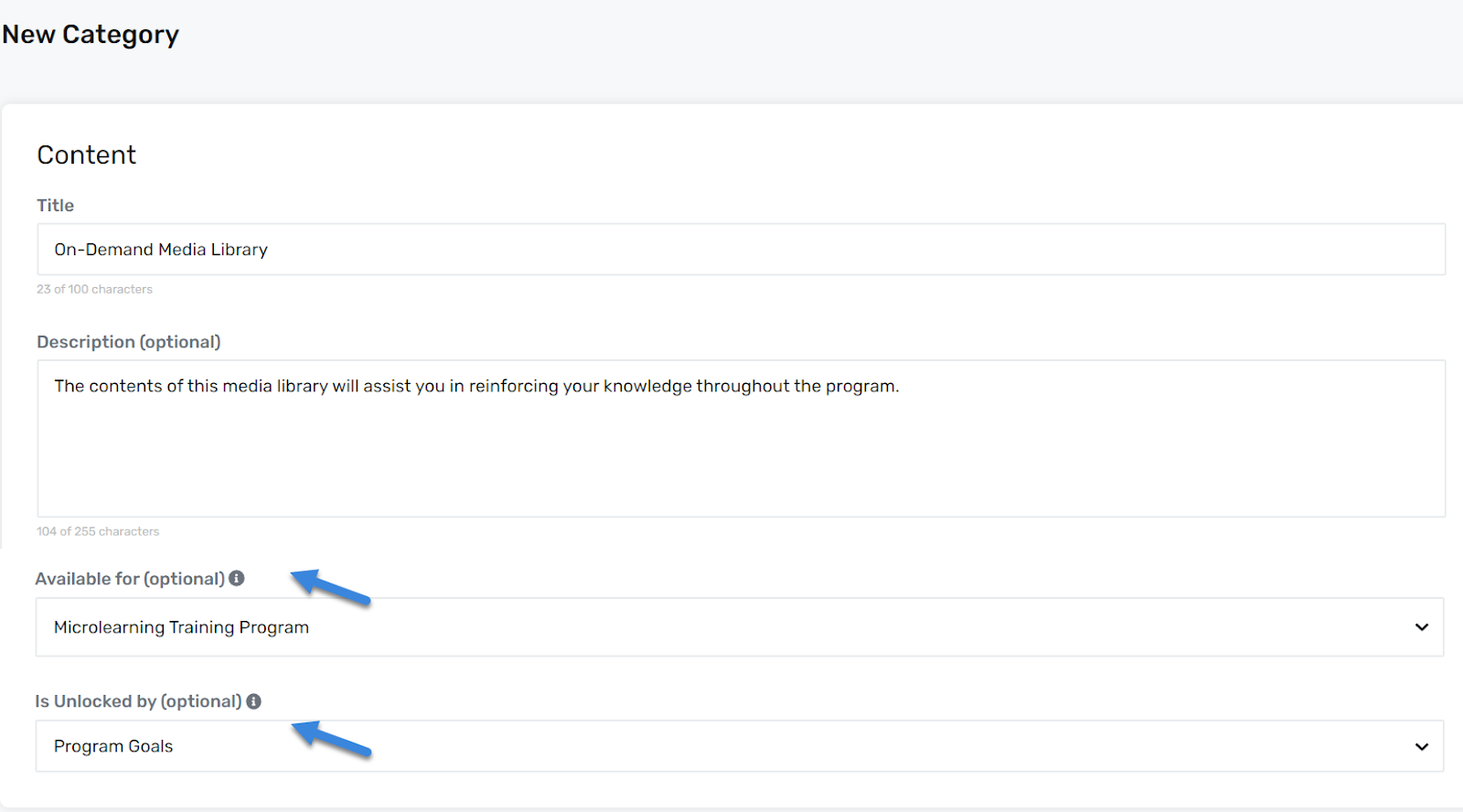
Under the Content section enter a Title and short Description for the New Category. If you want the Resource Category to be associated with a specific program and/or unlocked by a specific mindmarker, make your selections from the dropdown menus.
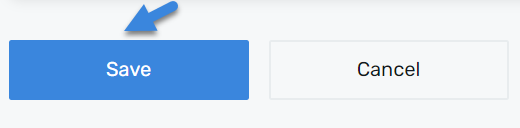
Once all required fields are complete, click Save to add the category.
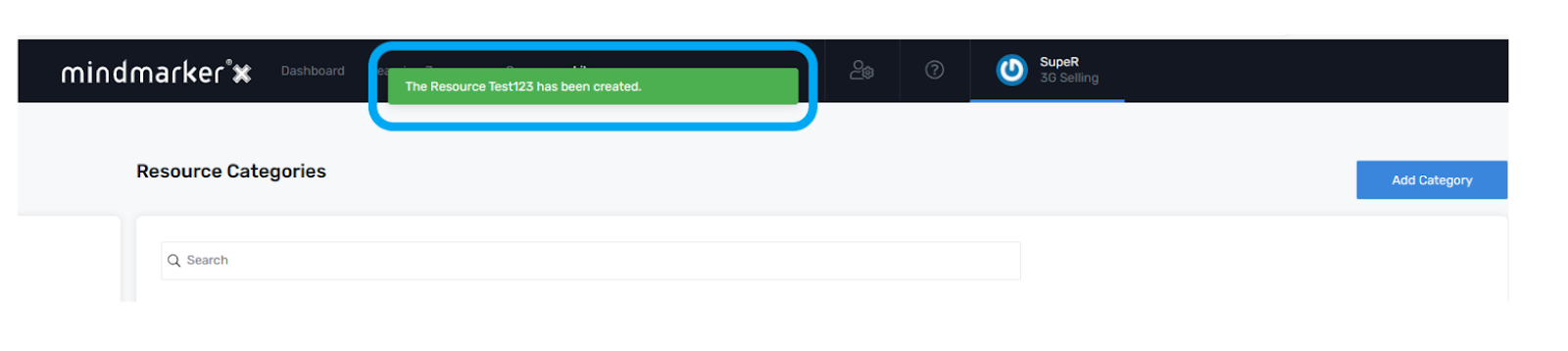
A pop-up message will appear confirming that the resource has been successfully added.
We use cookies to ensure that we give you the best experience on our website. If you continue to use this site we will assume that you are happy with it.