a. Click the program you want to generate a mindmark for by selecting Program Overview from the (⋮) menu.
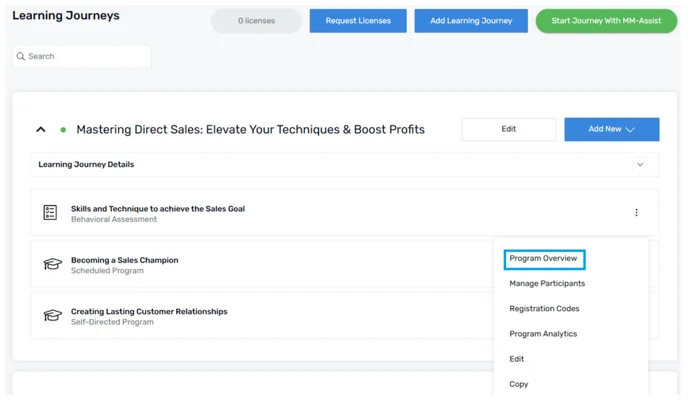
Note: Steps 1 and 2 aren’t required if you’re generating a new program.
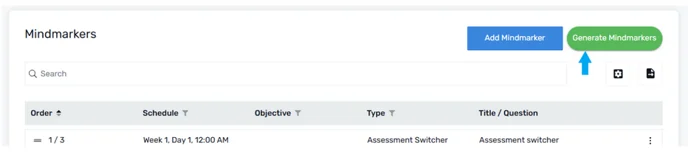
a. Click the Generate Mindmarkers button
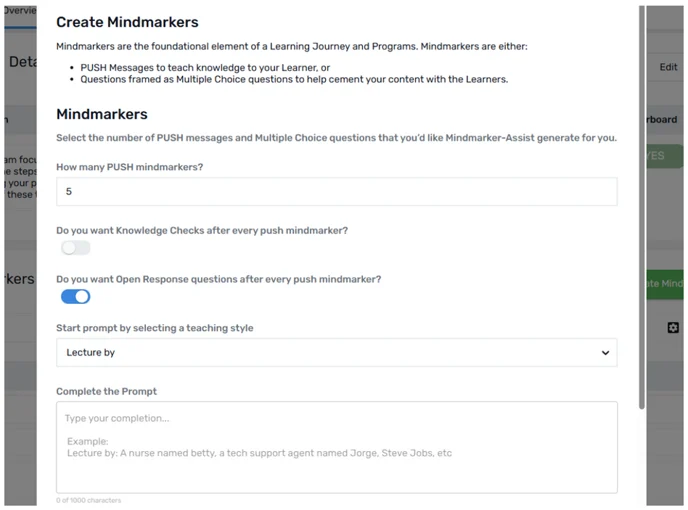
a. Fill out the required fields.
1. How many PUSH mindmarkers?
2. Do you want Knowledge Check after every PUSH mindmarker?
3. Do you want an Open Response question after every PUSH mindmarker?
4. Start prompt by selecting a teaching style
5. Complete the Prompt
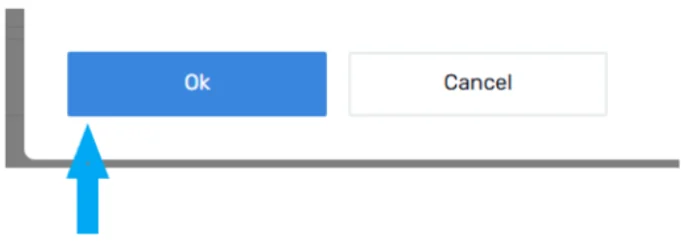
a. Click the OK button to generate the mindmarker.
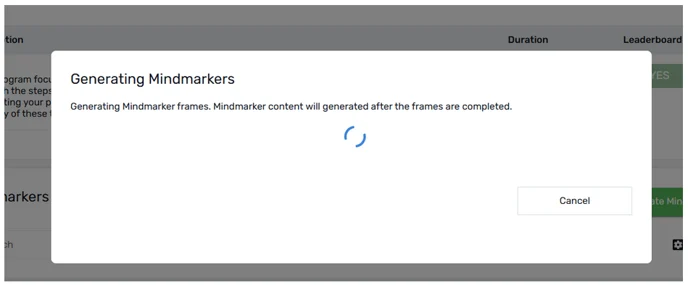
b. MM-Assist will start generating the mindmarkers.
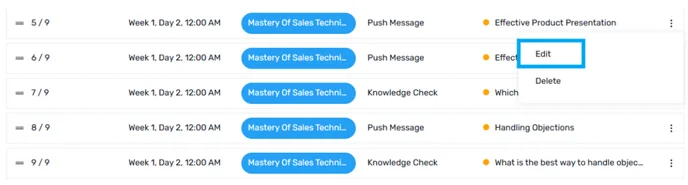
a. After generating the mindmarker frame, click on the Edit button from the (⋮) menu.
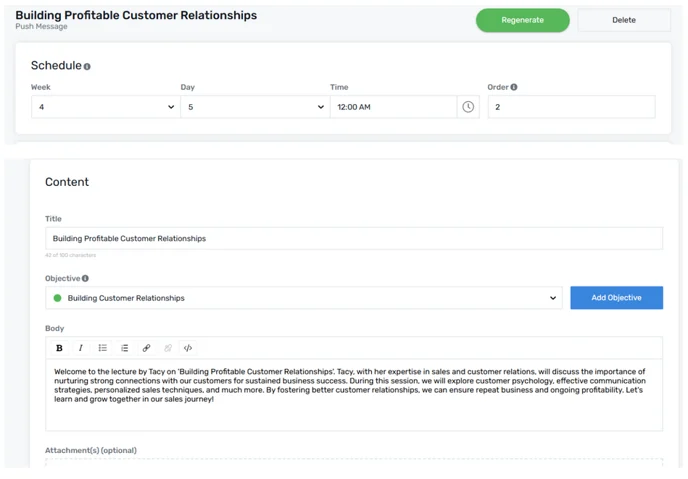
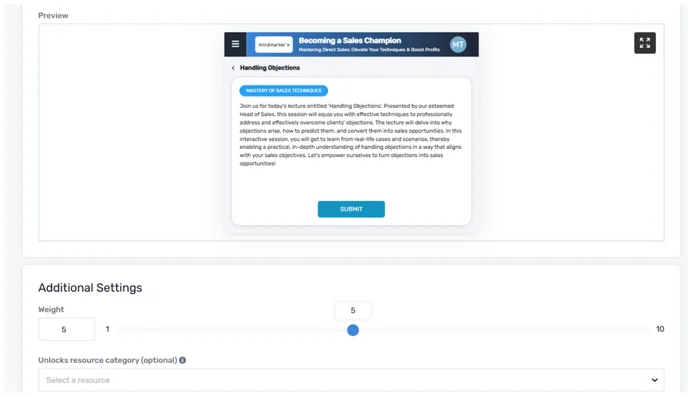
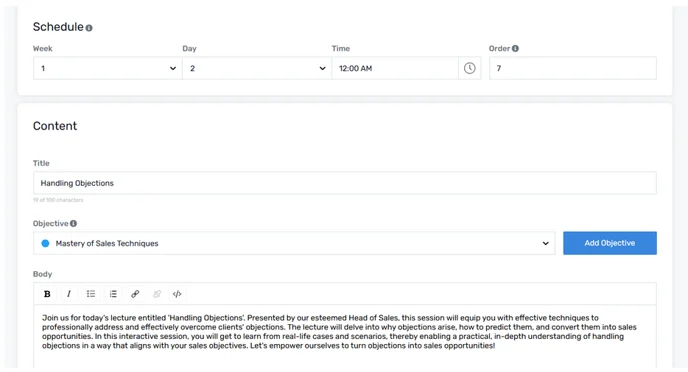
b. A new Mindmarker edit page will appear on your screen. You can edit Schedule, Content, and Additional Settings as required.
a. Once all the changes are made, click Save And Go Next to generate another Mindmarker.
b. A confirmation message will pop up stating that Mindmarker has successfully updated.