Generic selectors
Exact matches only
Search in title
Search in content
Post Type Selectors

Follow these steps to manually grade and provide feedback for Open Response, and Learner Upload mindmarkers:

1. Navigate to the Learning Journeys Menu

Go to the Learning Journeys menu in your dashboard. 

 

2.  Select the Program

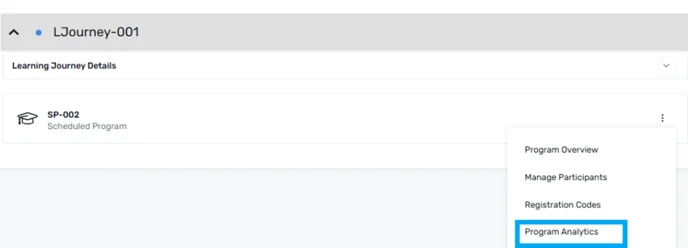
a. Choose the program you want to grade. Click Program Analytics from the (⋮) menu to access the program details. 
 

3.  Select the Response Tab

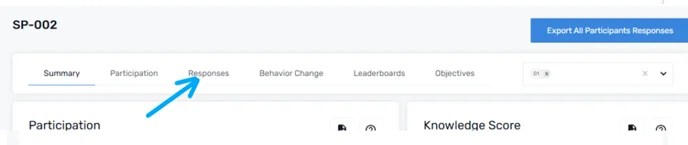
a.  Once you’re in Program Analytics, click on the Response tab to view participant responses. 
 

4.  Grade and Provide Feedback

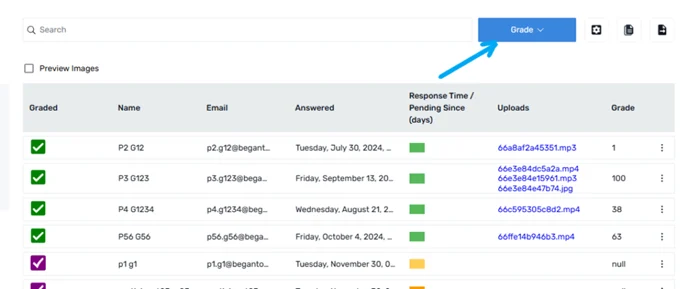
Under the Response tab, you can manually grade Open Responses, and Learner Uploads. 

 

a. Grade All: Use this option to grade all participants at once. 
 

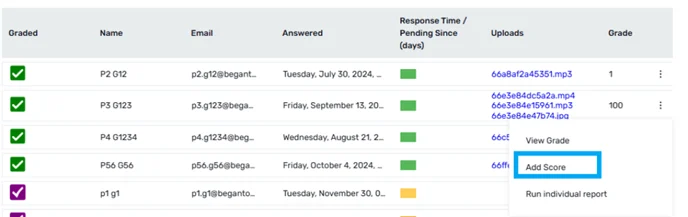
b. Grade Individual Participants: Grade specific participants, click on their entry and select Add Score from the (⋮) menu. 
 

5.  Click save

a. After grading and providing feedback, click Save to apply the changes. 
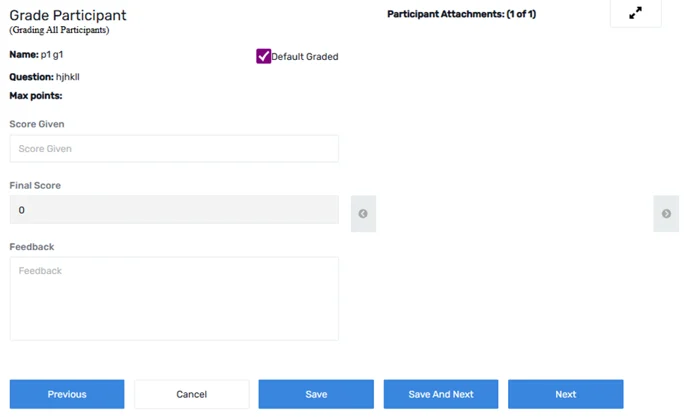
 

b. A confirmation message will appear, letting you know your feedback has been successfully saved. 

 

 Note

  • purple checkbox indicates the mindmarker has not been graded yet.
  • The checkbox will turn green once the mindmarker is manually scored.


Let’s Talk Training Transformation

Schedule a Demo or Request a Consultation

*Required fields

Ready to scale your training business?

Book a demo and see the platform in action

Ready to turn your expertise into scalable revenue?

Be the first to know when Ready-to-Sell Training Programs launch. Join our newsletter for early updates, exclusive access, and new program releases.

See Mindmarker in Action

Alex - CEO & Co-Founder

Book a 15-minute demo with our CEO to explore how Mindmarker can transform your training business into a scalable revenue engine.

No pressure. Just a real conversation about your goals and growth opportunities.