Generic selectors
Exact matches only
Search in title
Search in content
Post Type Selectors

Up until now the top-level menu item “Media” is the place where all your corporate resources were found.  We made a few changes to make navigation easier and to allow you to have direct access to all your media content.  

What’s New for the Admin Users?

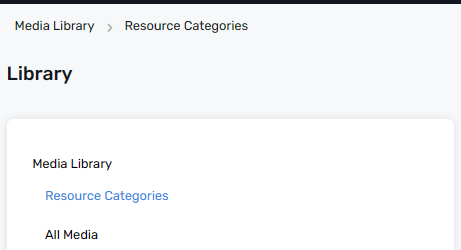
The first thing you will see is that the top-level menu is now called Library. You will find the Media Library with all your categories and resources inside just as before but you will also be able to directly see the resources.

The Library has two top-level components.

I. Media Library

It includes Categories and All Media available in the portal to your company.

Resource Categories:

  1. Resource Category groups together various Resources that can be made available to  Participants in programs at different stages of the Program. 
  2. Inside Resource Categories, you will find Resources.
    1. Resources have a title and a description
    2. Resources include one or many Media elements including:
      • video files, audio files, images, documents
      • Note that two files can be grouped together to create an Action Card
      • Resources also have a short code that can be used inside Mindmarkers to display the Media.

All Media:

  1. A list of all Media that has been uploaded to the company and is available to be included in Resources.
  2. These resources can be displayed in a list view or a grid view.

Notes:

II.  AI-Training Library

 AI-Training Library includes Collections and All Assets that are used as source content for Mindmarker Assist, Ascend Virtual Coach and Ascend Activities. 

Collections:
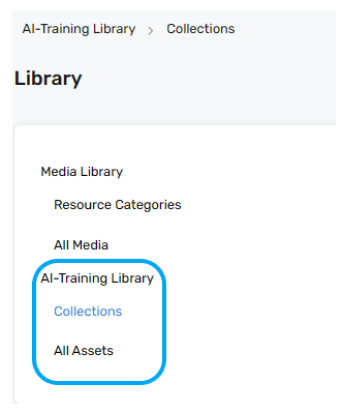
  1. group together various Assets that can be made available to Mindmarker Assist, Ascend Virtual Coach and Ascend Activities. 
  2. Inside Collections, you will find Assets.
    1. Assets include:
      • Files that are of type: PDF, Text, MS Word, MS Excel, MS Powerpoint, G-Suite Docs, G-Suite Sheets, or G-Suite Slides.
      • URLs to websites – Google Drive folders that include file types mentioned above.

Note:

  • AI Training Library is available for the Mindmarker Assist subscribers.
  • Please learn more about “How to add Collection?”

All Assets:

  1. A list of all Assets that have been uploaded to the company and are available to be included in Collections.
  2. These Assets can be displayed in a list view or a grid view.

Let’s Talk Training Transformation

Schedule a Demo or Request a Consultation

*Required fields

Ready to scale your training business?

Book a demo and see the platform in action

Ready to turn your expertise into scalable revenue?

Be the first to know when Ready-to-Sell Training Programs launch. Join our newsletter for early updates, exclusive access, and new program releases.

See Mindmarker in Action

Alex - CEO & Co-Founder

Book a 15-minute demo with our CEO to explore how Mindmarker can transform your training business into a scalable revenue engine.

No pressure. Just a real conversation about your goals and growth opportunities.